













|
 Simplifying Treatment Mechanics, Increasing Efficiency and Practice Profitability with the Complete Clinical Orthodontics System Simplifying Treatment Mechanics, Increasing Efficiency and Practice Profitability with the Complete Clinical Orthodontics System
Presenter: Dr. Antonino Secchi CE Supporter: GC America
|
|||||||||

|
Simple Strategies that Make the Most Common Dental Procedures Easier
Presenter: Dr. Ankur Gupta CE Supporter: VOCO America
|
|||||||||

|
Predictable and Pretty Posterior Composite Pearls to Increase Success
Presenter: Dr. Jennifer Derse CE Supporter: VOCO America
|
|||||||||

|
Adhesive Dentistry: How to Do It and When to Glue It
Presenter: Dr. Alex Vasserman CE Supporter: Bisco
|
|||||||||
On-Demand CE Webinars (Showing 3 Newest)
 |
 Warming Trends: Injecting Innovation into Dental Composites Warming Trends: Injecting Innovation into Dental Composites
Presenter: Dr. Frank Milnar CE Supporter: VOCO America Release Date: 4/18/24 Expiration Date: 4/18/27 CE Credits: 1 CEU (Self-Study) Description (expand) |
 |
Guide It: Clinical Approaches to Integrating CT Guided Implant Surgery in Your Practice
Presenter: Dr. Matthew Hallas CE Supporter: DMG America Release Date: 4/16/24 Expiration Date: 4/16/27 CE Credits: 1 CEU (Self-Study) Description (expand) |
 |
Silver Diamine Fluoride for Patients of All Ages
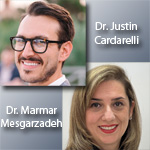
Presenter: Dr. Justin Cardarelli and Dr. Marmar Mesgarzadeh CE Supporter: Centrix Release Date: 4/15/24 Expiration Date: 4/15/27 CE Credits: 1 CEU (Self-Study) Description (expand) |
New! Dental Podcasts (Showing 3 Newest)
| Episode 556: The Periodontal War: How Not to Lose |
 Supporter: Viva Learning Originals
CE Credits: 0.25
Supporter: Viva Learning Originals
CE Credits: 0.25
Guest: Dr. Steven Milman Release Date: 4/17/24 |
| Episode 555: Get Ahead of the Misery: Injury Prevention Strategies from a Dental Hygienist Body-Builder |
|
Supporter: DENTALEZ
CE Credits: 0.25
Guest: Katrina Klein, RDH Release Date: 4/15/24 |
| Episode 554: Oral Cancer and Head and Neck Evaluations: The Role of the Dental Practice and Getting Paid Through Medical Insurance |
|
Supporter: Viva Learning Originals
CE Credits: 0.25
Guest: Kandra Sellers, RDH Release Date: 4/10/24 |
Articles & Press Releases
|
Faster. Better. Stronger. Adhese Universal in the VivaPen for enhanced efficiency of dental treatment protocols
Released: 3/20/2024 The Ivoclar Group, a leading supplier of integrated solutions for high-quality dental applications, offering a comprehensive product and systems portfolio for dentists, dental technicians and dental hygienists, has developed an advanced portfolio for direct restorative treatment procedures with the aim of enhancing the efficiency of dental practices in achieving exceptionally esthetic results. Its Direct Restoratives Workflow features products for every step of the treatment process. Read More » |
|
Air Techniques Announces the Newest All-Star at the Chicago Midwinter Meeting
Released: 2/20/2024 Air Techniques, Inc., a leading innovator, and manufacturer of dental equipment, will be introducing their next all-star, FlowStar Nitrous Flowmeters and Components. The new FlowStar Touch and Analog will be displayed at the Air Techniques booth, #1425, and attendees will get an up-close look at these next-level nitrous oxide/oxygen sedation innovations. Attendees will also be eligible for free Garrett Popcorn, a Chicago staple, after receiving a demo of VisionX Imaging Software. Read More » |
|
Centrix Announces the Release of Silversense SDF, 38% Silver Diamine Fluoride!
Released: 1/18/2024 SilverSense SDF is a blue-tinted 38% silver diamine fluoride solution that is FDA cleared as a professional-use tooth desensitizer. Silver diamine fluoride has been used internationally for decades due to its antimicrobial and desensitizing properties. As a desensitizer, SilverSense SDF forms insoluble precipitates with calcium or phosphate in the dentinal tubules to block nerve impulses. SilverSense SDF will become a standard part of your preventive-restorative armamentarium as it alleviates hypersensitivity and allows your patient to comfortably wait for restorative treatment. Read More » |
|
The Shils Entrepreneurial Fund Announces “The Great Oral Health Pitch: Innovate, Elevate and Generate Your Idea to Advance Oral Health!”
Released: 11/1/2023 Entrepreneurs are invited to pitch their ideas for the opportunity to win a sponsorship package worth more than $50,000 to launch their business. The Great Oral Health Pitch invites dental and oral health entrepreneurs to pitch their innovative business ideas at the Greater New York Dental Meeting on November 26, 2023 between 1pm – 5pm for their chance to win a grand prize worth more than $50,000 in business launch marketing, cash, networking opportunities and more! Read More » |